
This guide walks you through how to create a bulk price editing task for selected Shopify Markets.
Step 1: Navigate to New Task
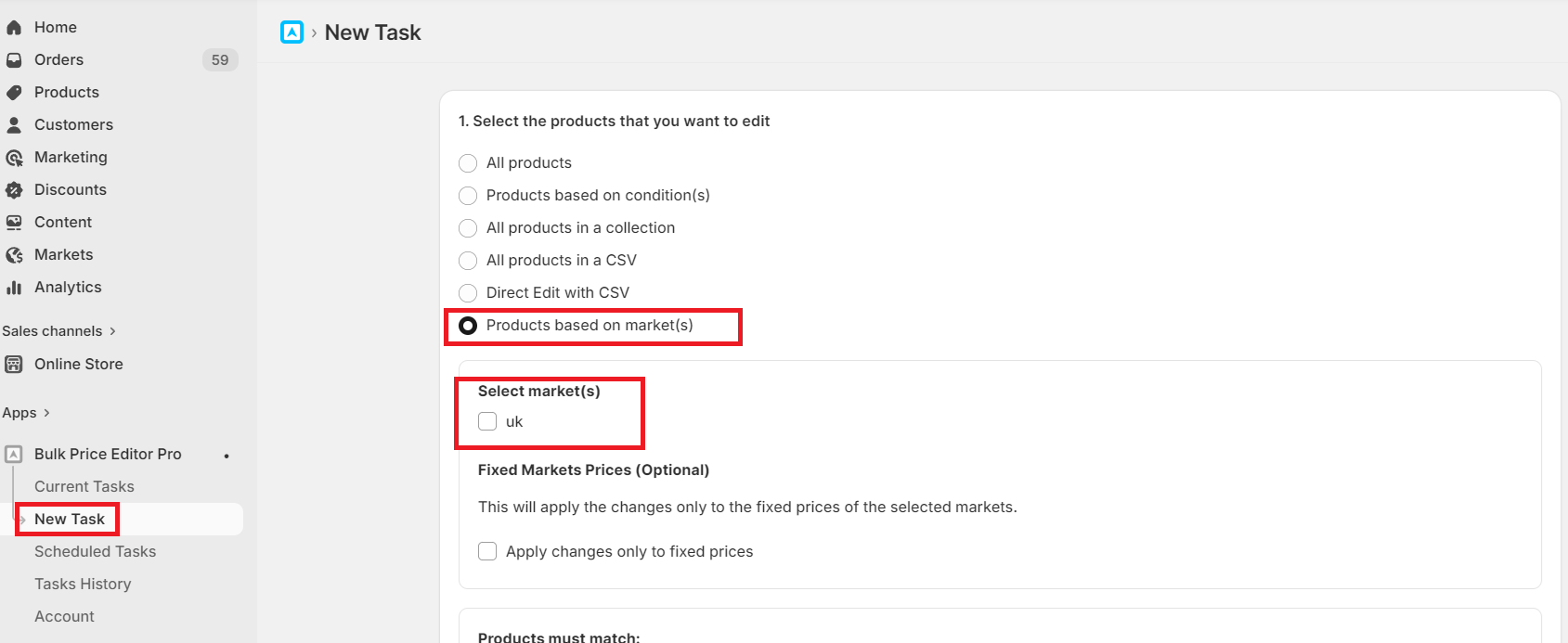
- Open the app dashboard.
- Click on New Task from the navigation menu.
Step 2: Select Products to Edit
Under “Select the products that you want to edit”, choose:
- Products based on market(s)
Step 3: Select Market(s)
- In the Select market(s) section, choose one or more markets (e.g., UK).
Step 4 (Optional): Fixed Market Prices
- Enable “Apply changes only to fixed prices” if you want to update only fixed prices for the selected markets.
- Leave unchecked if you want changes to apply more broadly.
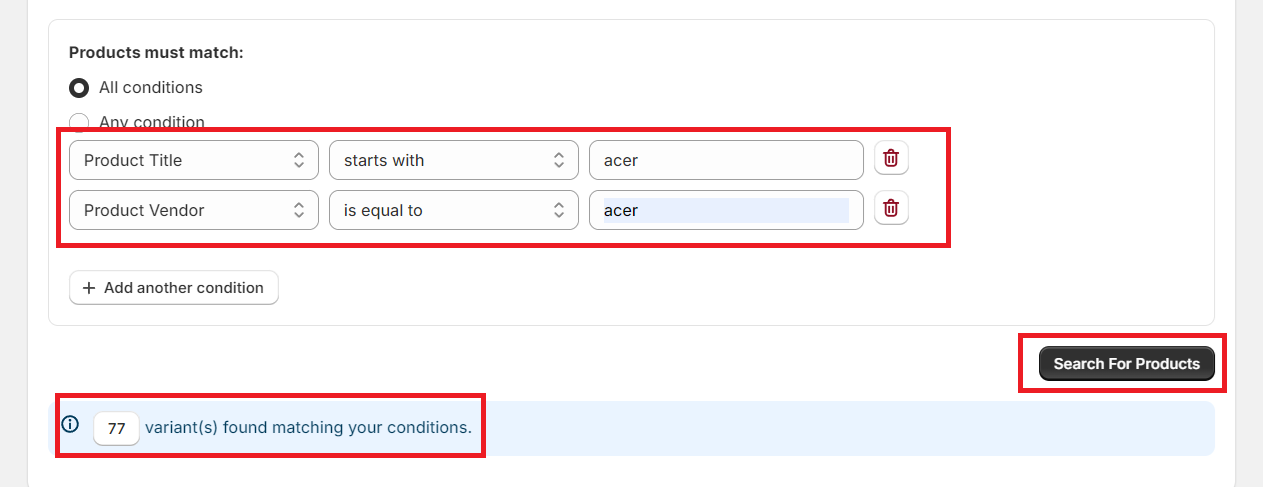
Step 5: Add Product Conditions
Define which products should be included:
- Choose whether products must match:
- All conditions, or
- Any condition
- Add filters such as:
- Product Title
- Vendor
- Product Type
You can click + Add another condition to refine your selection.
Step 6: Search for Products
- Click Search For Products to preview and confirm the products that match your criteria.
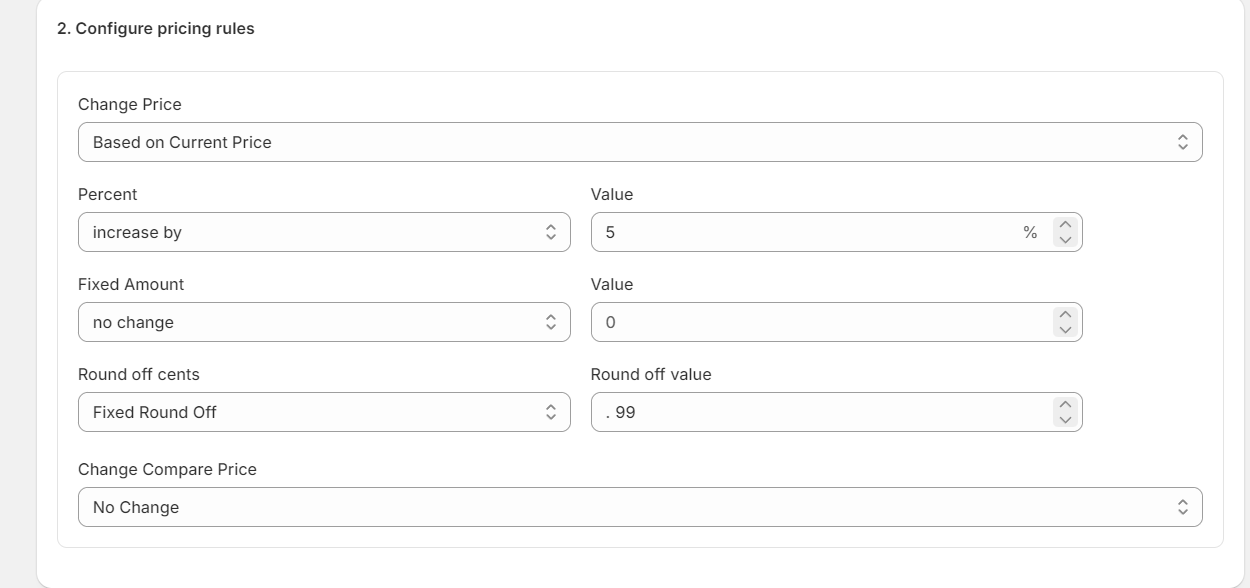
Step 7: Apply Price Changes
- Proceed with defining your pricing rules : You can update the prices either by a fixed amount or provide a percentage markup or markdown. Optionally, you can set the rounding off digits for both 'Price' and 'Compare Price'.
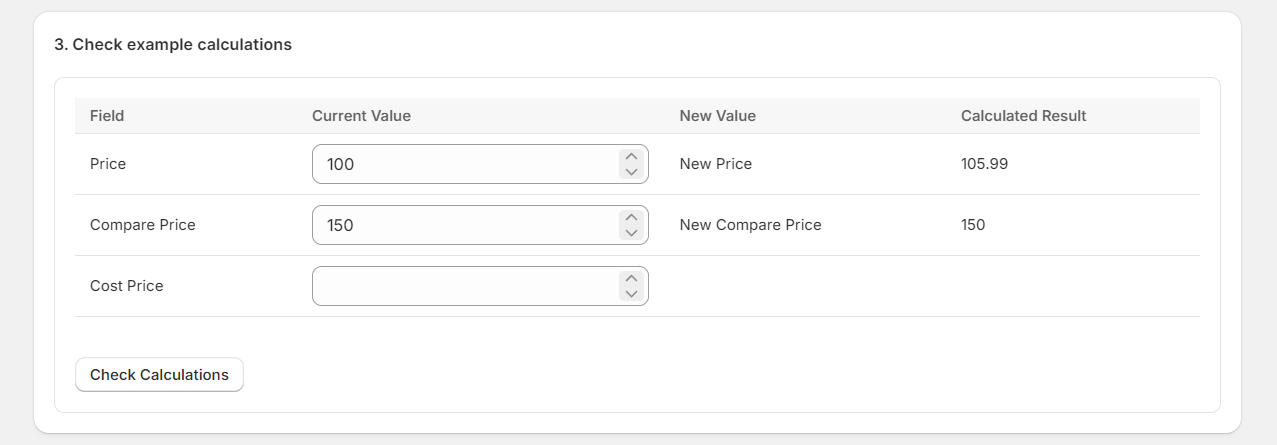
- Review the task : Verify your pricing rules by testing them in the Calculations box.
Step 8 : Finally, configure the task to run immediately to schedule it for a future date. Optionally, schedule the rollback task to revert prices back to the original state. Click 'Run task'.
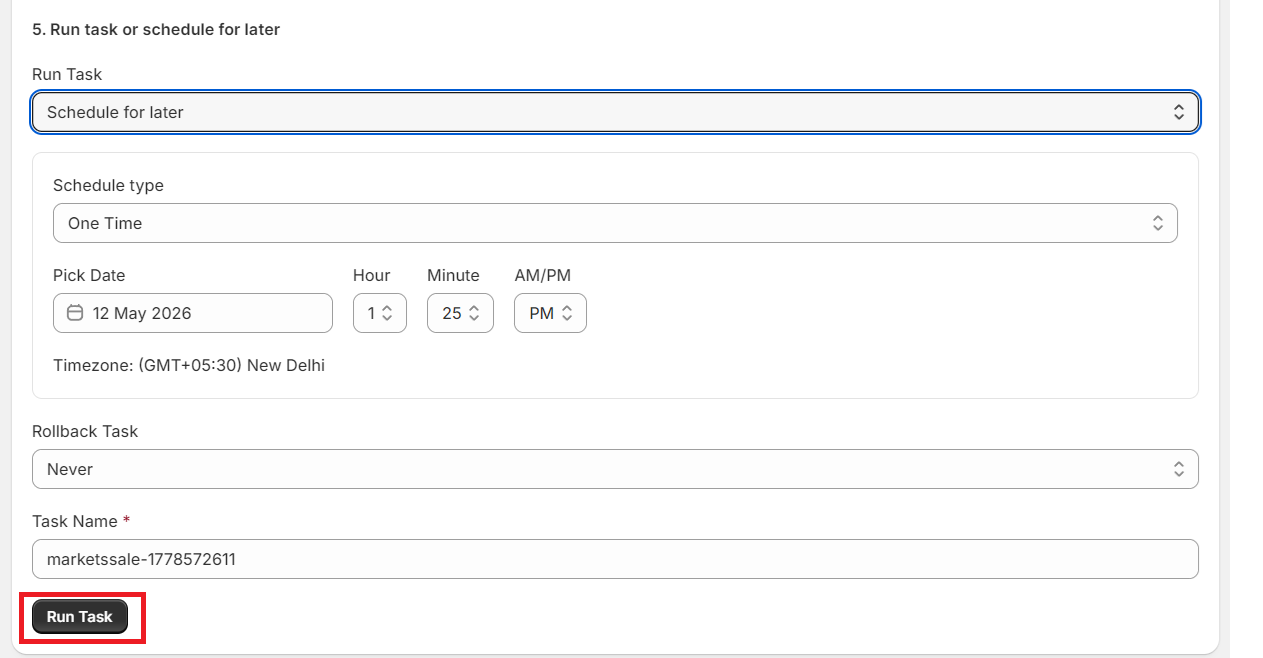
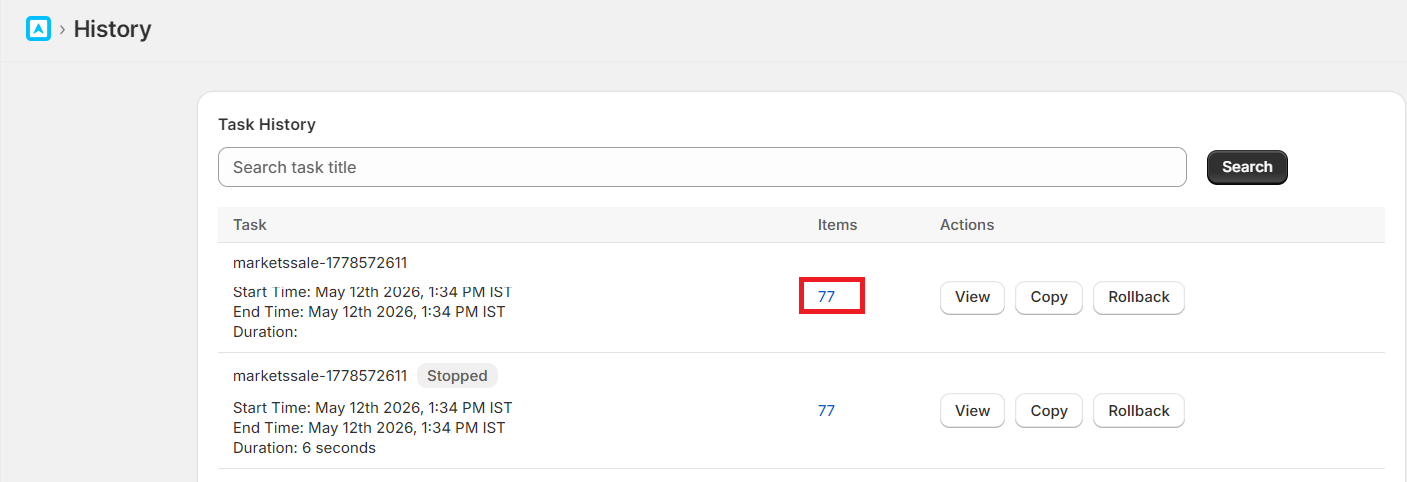
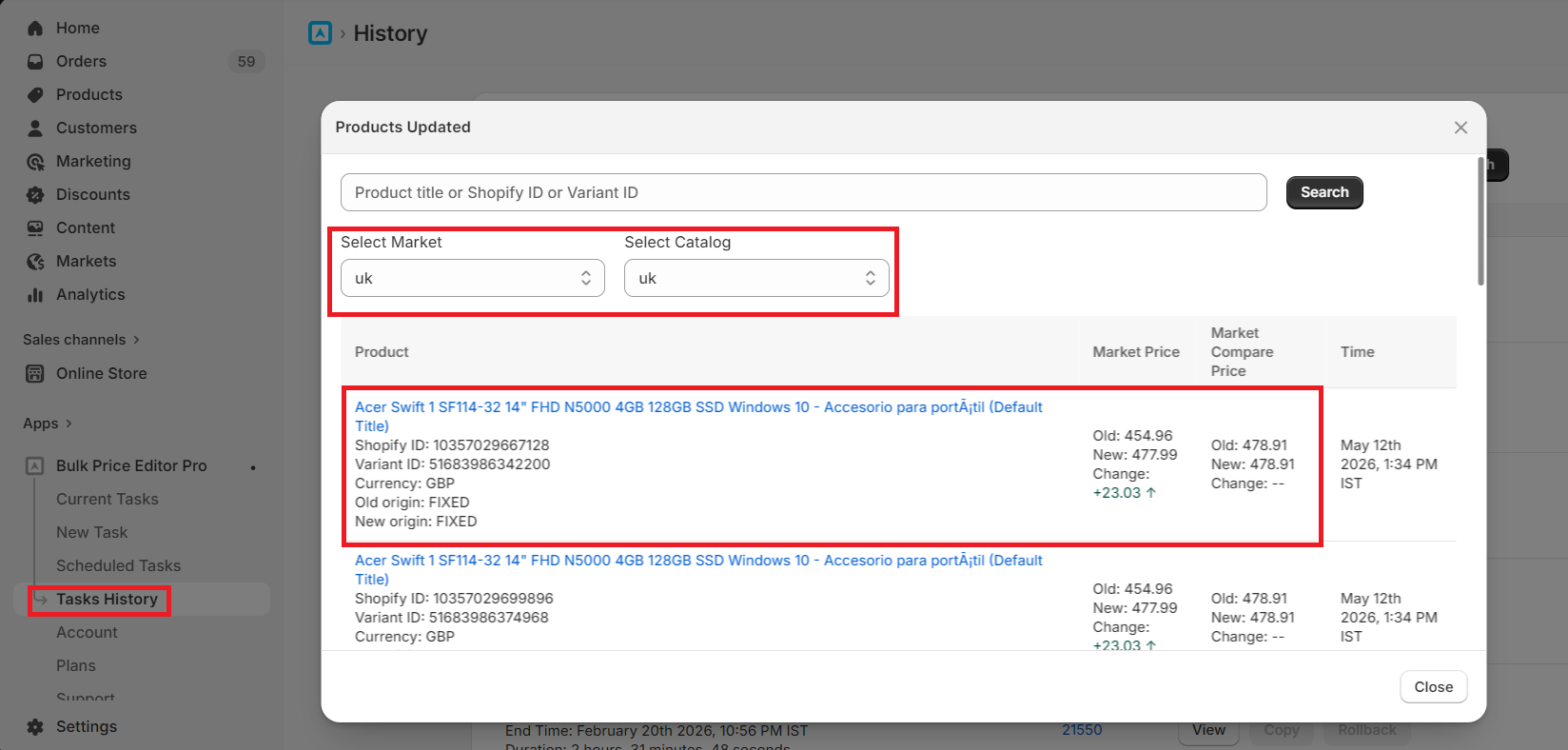
The app will execute the task as per the configuration. You can monitor the task activity in real-time and see the products that were edited with New and Old prices displayed together.
⚠️ Important Notes
- Markets will only be displayed if a catalog is assigned to that market in Shopify.
If you do not see a market listed, ensure that:- The market is properly set up in Shopify Markets
- A catalog is assigned to that market
- This feature is available for the Super plan users only.